![Avatar 8-1.png]](https://support.zapfloorhq.com/hs-fs/hubfs/Avatar%20%208-1.png?height=40&name=Avatar%20%208-1.png)
Who is this for? Workspace operators, coworking space managers, customer success teams, and website administrators who want to allow visitors to book meeting rooms or desks directly from their website.
What will this help you achieve? You'll be able to embed Zapfloor's enhanced booking interface on a customer’s website, letting visitors make reservations without leaving your site, all with real-time availability filtering and a modern, streamlined experience.
What Does the Zapfloor iFrame Do?
The Zapfloor iFrame integration allows you to embed Zapfloor's complete booking system directly on your own website. Think of an iFrame as a "window" on your webpage that displays content from another site, in this case, your Zapfloor booking system.
Why is this useful?
-
Visitors can book meeting rooms or desks without being redirected to a different website
-
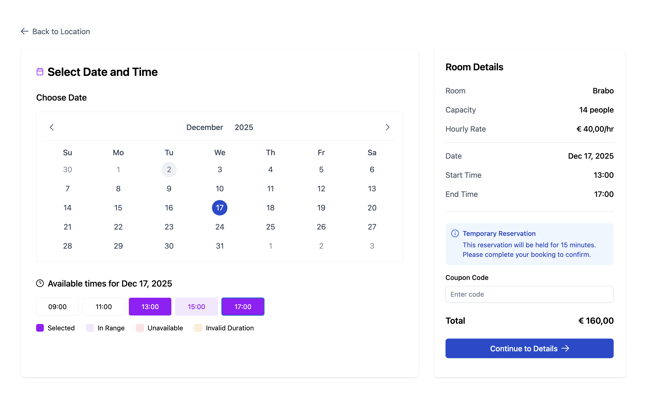
As visitors select dates and times, they instantly see only available spaces—no more clicking on unavailable rooms
-
The booking interface appears as part of your site, maintaining your brand experience
-
When bookings are made through the iFrame, they're automatically synced to Zapfloor in real-time
-
Enable external bookings for meeting rooms and desks to monetize your space
What's New in Version 2.0?
If they are upgrading from the previous iframe version, here's what's improved:
1. Real-Time Availability Filtering
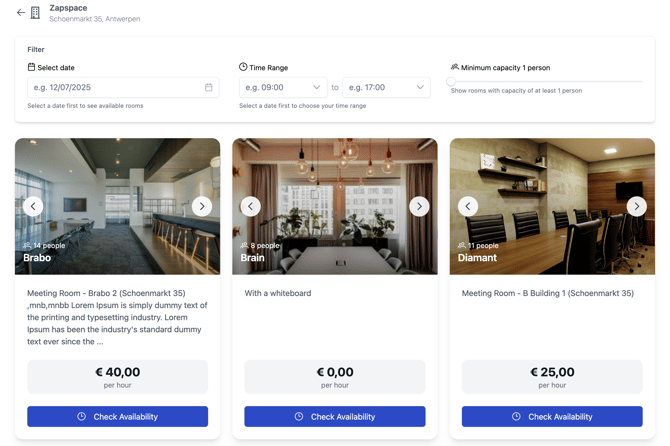
As visitors select dates and times, the system instantly shows only available meeting rooms or desks. Customers won't waste time clicking on rooms that aren't available—they only see what they can actually book.
2. Fresh, Modern UI
The interface has been completely redesigned with a cleaner, more intuitive visual design that makes the booking experience smoother and more professional.
3. Stripe Hosted Payment Page
Instead of embedded payment forms (called Stripe Elements), payments now happen on a separate Stripe-hosted page. This means you can easily add new payment methods (like Apple Pay, Google Pay, or local payment options) directly from your Stripe dashboard without any technical changes to the iframe.
4. Unique URLs for Each Step (Deep Linking)
Every step in the booking flow has its own unique URL, which means you can choose where website visitors start their journey. You could link them directly to a specific meeting room page, show them filtered results, or start them at workspace selection—whatever makes the most sense for your use case.
What You'll Need Before Starting
Before you can implement the iFrame, make sure you have:
✅ Admin access to your website (so you can edit the HTML code)
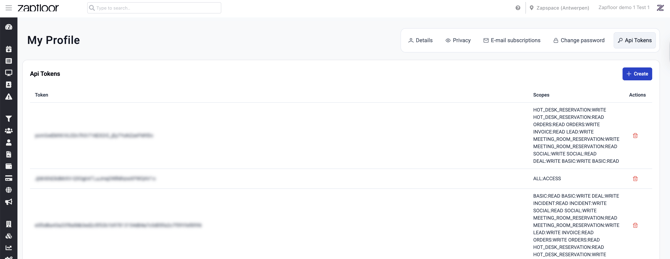
✅ A unique token from Zapfloor (can be found in your profile > API tokens when logging in as an operator)
✅ Stripe account connected (for payment processing and setup in your Integrations)
✅ External bookings enabled for your meeting rooms and/or desks in Zapfloor
✅ Basic HTML knowledge or someone who can help you add code to your website
Getting Your API Token
Your API token is the security key that connects the iframe to your Zapfloor account. Here's how to find it:
-
Log in to your Zapfloor operator dashboard at app.zapfloorhq.com
-
Navigate to Profile > API Tokens or go directly to app.zapfloorhq.com/#/profile/api-tokens
-
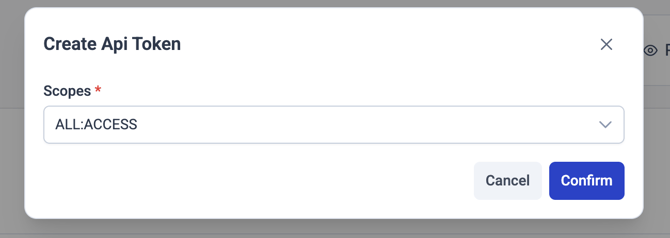
Copy your existing token, or create a new one if needed. You need it in the next step
Important: Keep your API token secure—it provides access to your account data. Never share it publicly or commit it to public code repositories.
How to Add the Zapfloor iFrame to Your Website (Responsive Method)
We recommend the responsive configuration, which automatically adjusts the iFrame size to look great on all devices—desktops, tablets, and phones.
Step 0: Setup from scratch
https://main.dfau7gdl2lwn4.amplifyapp.com/setup
Step 1: Choose Your URL Based on Your Use Case
The Zapfloor iframe 2.0 offers different URL patterns depending on what you want to show:
Option A: General Setup Page (Location Selection)
Start visitors at the workspace location selection page:
Meetings: https://main.dfau7gdl2lwn4.amplifyapp.com/?token=ADD_YOUR_TOKEN_HERE&mode=meetings
Example (fake token): https://main.dfau7gdl2lwn4.amplifyapp.com/?token=JjhhXd38dMrXV-Q9OgdntTLuJmqDWlMhzwXPWQAV1o&mode=meetings
Use this when: You have multiple locations and want visitors to choose which one they want to book
Option B: Meeting Rooms (One Location)
Show all meeting rooms for one of your locations:
https://main.dfau7gdl2lwn4.amplifyapp.com/location/YOUR_LOCATION_ID?token=ADD_YOUR_TOKEN_HERE&mode=meetings&color=214BCD
Example (fake token): https://main.dfau7gdl2lwn4.amplifyapp.com/location/e5ddsd48-e37e-4hde-9ec5-b44a420092bb?token=Jjhh23418dMrXV-Q9OglntTLuJmqD32MhzwXPWQAV1o&mode=meetings
Use this when: You want to show all meeting room options from that specific location
Option C: Hotdesks/Desks (All Locations)
Show all hotdesks across all your locations:
https://main.dfau7gdl2lwn4.amplifyapp.com/?token=ADD_YOUR_TOKEN_HERE&mode=hotdesks
Use this when: You want to show all desk/hotdesk booking options
Option D: Hotdesks/Desks (One Location)
Show all hotdesks across all your locations:
https://main.dfau7gdl2lwn4.amplifyapp.com/location/YOUR_LOCATION_ID?token=ADD_YOUR_TOKEN_HERE&mode=hotdesks&color=214BCD
Use this when: You want to show all desk/hotdesk booking options
Option E: Specific Meeting room (Deep Link)
Jump directly to a specific location's booking interface:
https://main.dfau7gdl2lwn4.amplifyapp.com/room/YOUR_LOCATION_ID?token=ADD_YOUR_TOKEN_HERE&mode=meetings
Example: https://main.dfau7gdl2lwn4.amplifyapp.com/room/e770aba8-d8b3-42c9-b153-9af50be6ba54?token=JjhhXIhE8dMrXV-Q9OglntdddDWlMhzwXPWQAV1o&mode=meetings
Use this when: You have separate pages for different locations and want each to show only that location's spaces
Step 2: Copy the Responsive iFrame Code
Once you've chosen your URL, use this responsive code template:
<div style="position: relative; padding-bottom: 56.25%; height: 0; overflow: hidden;">
  <iframe
    src="https://main.dfau7gdl2lwn4.amplifyapp.com/?token=YOUR_TOKEN&mode=meetings"
    style="position: absolute; top: 0; left: 0; width: 100%; height: 100%; border: none;">
  </iframe>
</div>
Step 3: Customize Your URL Parameters
Replace the placeholder values with your actual information:
Required:
-
YOUR_TOKEN- Your unique token from Zapfloor (looks likeJjhhXIhE8dMrXV-Q9OglntTLuJmqDWlMhzwXPWQAV1o) -
mode=meetings- Shows meeting room booking interface -
mode=hotdesks- Shows desk/hotdesk booking interface
Optional:
-
YOUR_LOCATION_ID- The specific location ID (find this in your Zapfloor dashboard) -
&color=ff1d22- Custom brand color (hex code without #)
OR
Copy the URL of the page where you want the visitor to start and paste it in the src=”YOUR_COPIED_URL" part in the iframe. See previous sections Step 1 A -> E.
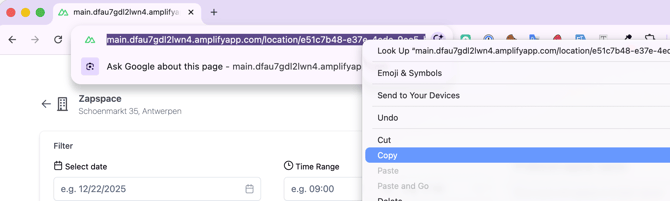
Example with all customizations:
This example contains a fake token and location id
<div style="position: relative; padding-bottom: 56.25%; height: 0; overflow: hidden;">
  <iframe
    src="https://main.dfau7gdl2lwn4.amplifyapp.com/location/e5sss48-e37e-4ede-9ec5-b44a420092bb?token=JjhhXIhE8dMrXV-Q9OglntTLuJmqDdsdszwXP33V1o&mode=meetings&color=1a73e8"
    style="position: absolute; top: 0; left: 0; width: 100%; height: 100%; border: none;">
  </iframe>
</div>
Why do you need a token? The token is a security measure that connects the iFrame to your specific Zapfloor account. It ensures only authorized bookings are synced to your system.
Step 4: Paste the Code on Your Website
Copy your customized code and paste it into the HTML editor of the webpage where you want the booking interface to appear. This is usually done through your website's content management system (CMS) like WordPress, Wix, Squarespace, or directly in the HTML if you have developer access.
Step 5: Test It Out
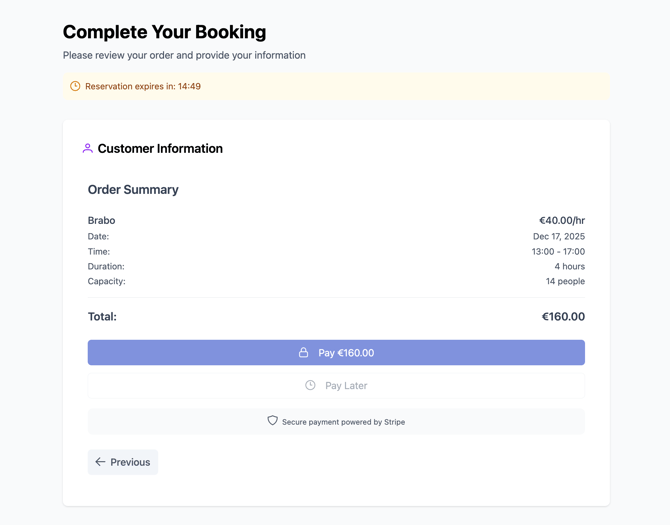
After adding the code, visit your webpage to confirm:
-
✅ The booking interface loads correctly
-
✅ It displays properly on desktop and mobile devices
-
✅ Real-time availability filtering works as you change dates/times
-
✅ Test bookings sync to your Zapfloor dashboard
-
✅ Payment processing works through Stripe's hosted page
Understanding the Responsive Code (For the Curious and tech savvy)
Let's break down what each part of the code does:
The outer <div> wrapper:
<div style="position: relative; padding-bottom: 56.25%; height: 0; overflow: hidden;">
-
position: relative- Creates a reference point for the iFrame positioning -
padding-bottom: 56.25%- Creates a 16:9 aspect ratio (like a widescreen display). This percentage determines the height relative to the width -
overflow: hidden- Prevents any content from spilling outside the container
The <iframe> itself:
<iframe
  src="https://main.dfau7gdl2lwn4.amplifyapp.com/?token=YOUR_TOKEN&mode=meetings"
  style="position: absolute; top: 0; left: 0; width: 100%; height: 100%; border: none;">
</iframe>
-
position: absolute- Allows the iFrame to fill the entire container -
width: 100%; height: 100%- Makes the iFrame fill the full width and height available -
border: none- Removes the default border for a cleaner look -
src- The URL that points to your Zapfloor booking interface
Why this approach? This responsive method automatically scales the booking interface to fit any screen size, ensuring visitors have a great experience whether they're on a phone, tablet, or desktop computer.
URL Parameters Reference Guide
|
Parameter |
What It Does |
Example |
Required? |
|---|---|---|---|
|
|
Your unique authentication token |
|
✅ Yes (except for /setup) |
|
|
What booking type to show |
|
❌ Optional |
|
|
Direct link to specific location |
|
❌ Optional |
|
|
Custom brand color |
|
❌ Optional |
|
|
Link to your terms & conditions |
|
❌ Optional |
|
|
Where to send users after booking |
|
❌ Optional |
|
|
Custom CSS file for styling |
|
❌ Optional |
What Happens When Visitors Use the iFrame?
Here's the complete booking journey your visitors experience:
-
Browse Available Spaces: Visitors see meeting rooms or desks with real-time availability
-
Filter by Date/Time: As they select dates and times, only available options are displayed
-
Select Unit or Meeting room: They choose their preferred meeting room or desk
-
Enter Contact Details: They provide their information (name, email, company details)
-
Secure Payment: They're redirected to Stripe's hosted payment page for secure processing
-
Confirmation: They receive automatic confirmation emails
-
Account Creation (background): The system automatically creates a customer account in Zapfloor
Everything stays synchronized—no manual data entry needed on your end.
Common Issues & Troubleshooting
Problem: The iFrame isn't showing up
-
✓ Check that you've replaced
YOUR_TOKENwith your actual token from Zapfloor -
✓ Make sure your website allows iFrames (some site builders have restrictions)
-
✓ Verify the code is pasted in the HTML editor, not the visual editor
-
✓ Check browser console for errors (right-click > Inspect > Console tab)
Problem: The iFrame looks squashed on mobile
-
✓ Confirm you're using the responsive code structure with the outer
<div>wrapper -
✓ Test different
padding-bottompercentages—try 75% for a taller display -
✓ Ensure your website's CSS isn't overriding the iframe styles
Problem: Bookings aren't appearing in iframe
-
✓ Verify your token is correct
-
✓ Verify that token has scope: ALL:ACCES
-
✓ Confirm external bookings are enabled for your meeting rooms/desks in Zapfloor settings
-
✓ Contact Zapfloor support to verify your account configuration
Problem: The iFrame is the wrong size
-
✓ Adjust the
padding-bottompercentage to change the height -
✓ Make sure the parent container on your website isn't restricting the width
-
✓ Try using
min-heightinstead of aspect ratio if you need a fixed minimum height
Problem: Real-time filtering isn't working
-
✓ Ensure you're using the iframe 2.0 URL structure (main.dfau7gdl2lwn4.amplifyapp.com)
-
✓ Clear your browser cache and reload the page
-
✓ Contact support if the issue persists
Problem: Payment page doesn't load
-
✓ Verify your Stripe account is connected in Zapfloor
-
✓ Check that your Stripe account is in live mode (not test mode)
-
✓ Ensure pop-up blockers aren't preventing the Stripe page from opening
Upgrading from iFrame 1.0 to 2.0
If you're currently using the older iframe version, upgrading is simple:
Old URL format:
https://meeting-room-iframe.herokuapp.com/?token=...
New URL format (2.0):
https://main.dfau7gdl2lwn4.amplifyapp.com/?token=...
Simply replace your old URL with the new one—your token remains the same. You'll immediately get access to:
-
✅ Real-time availability filtering
-
✅ Modern, improved UI
-
✅ Stripe hosted payment page
-
✅ Deep linking capabilities
Need Help?
If you run into any issues or have questions about implementing the iFrame:
-
Contact Zapfloor support at support@zapfloorhq.com
-
Reach out to your Zapfloor account manager
-
Ask your customer success representative for help with location IDs and deep linking
Related Resources:
-
Zapfloor iframe settings in your dashboard: My Center > Settings > Meeting rooms > Iframe settings
-
Stripe integration documentation
-
External bookings setup guide