![Avatar 8-1.png]](https://support.zapfloorhq.com/hs-fs/hubfs/Avatar%20%208-1.png?height=40&name=Avatar%20%208-1.png)
1.Check the Peppol status of an invoice
You can check the Peppol status of an invoice in the Billing module by clicking the Invoices tab.
The globe icon in the invoice overview shows the current Peppol status of an invoice. This allows you to quickly check whether an invoice has been processed, successfully sent, or encountered an error.

3 possible statuses
| Color | Status | Explanation |
| Grey | Not processed | The invoice has not yet been processed for Peppol |
| Green | Successfully sent | The invoice was successfully sent to Peppol |
| Red | Error | An error occurred while sending the invoice to Peppol |
2. View a Peppol error
If the globe icon is red, an error occurred while sending the invoice to Peppol.
To view more details, simply hover over the red globe icon in the invoice overview. A tooltip will display the specific error message and, where available, information on how to resolve the issue.
Once the issue has been resolved, you can resend the invoice to Peppol.
3. Resend an invoice via Peppol
Once the Peppol error has been resolved, you can resend the invoice directly from the invoice details:
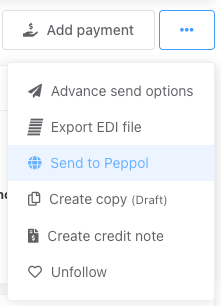
- Open the invoice you want to resend.
- Click the three dots in the top-right corner.
- Select Send to Peppol.
- The invoice will be sent to Peppol again.
You can then return to the Invoices tab in the Billing module to check the updated Peppol status using the globe icon.
4. What happens after resending
After the invoice has been sent, the Peppol status will be updated in the invoice overview. A green globe indicates that the invoice was successfully sent.